
External references
Find xrefs that are missing, unloaded or using absolute paths that may break when a drawing moves to another computer.
Pre-Plot Check scans your AutoCAD drawing for common issues that can spoil a PDF set - from missing xrefs and fonts to objects on non-plotting layers and unfinished title-block fields - so you can fix them before sending drawings out.
Built for full AutoCAD 2024-2027 on 64-bit Windows
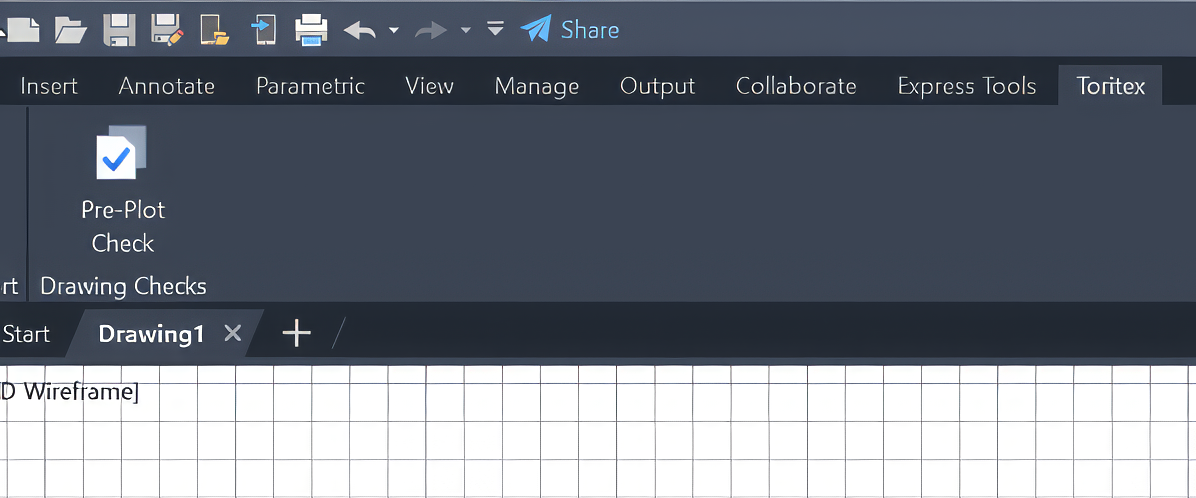
In the standard AutoCAD ribbon interface, Pre-Plot Check appears in the Drawing Checks panel of the Toritex tab. Just click the Pre-Plot Check button to run the check.
If you use a classic menu-and-toolbar workspace without the ribbon, type
PREPLOTCHECK on the AutoCAD command line.
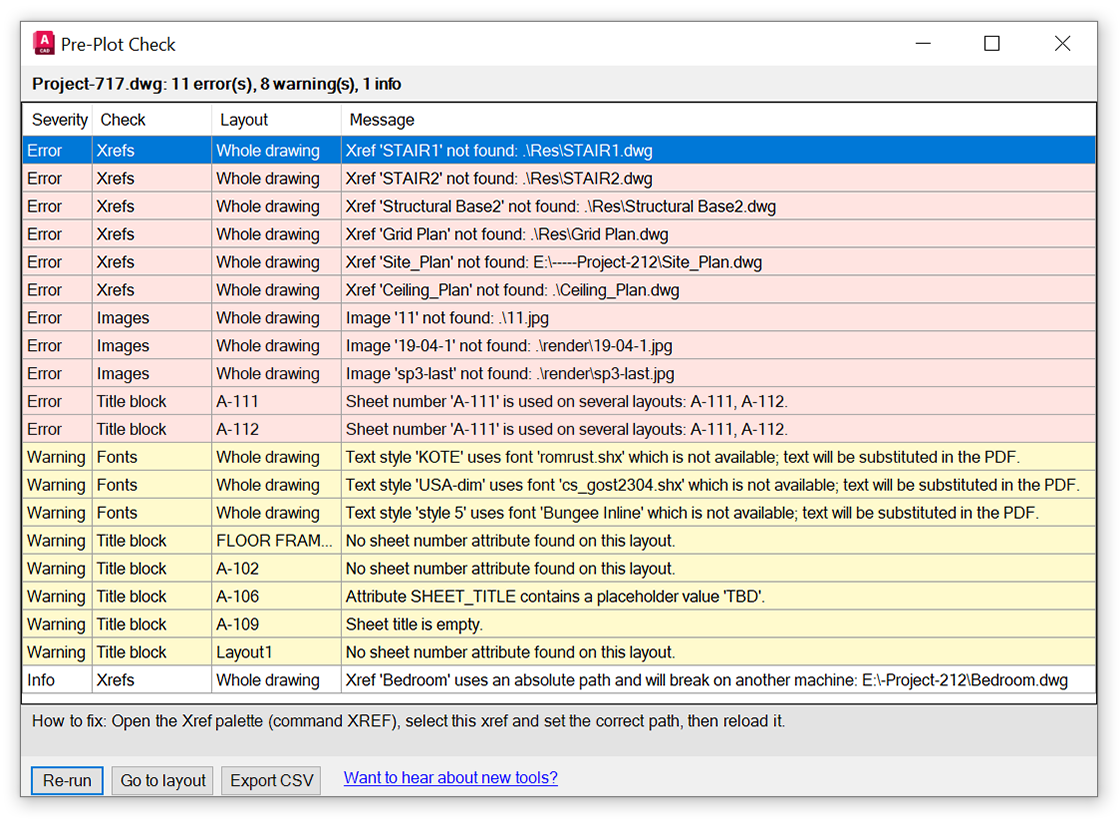
Pre-Plot Check groups findings by severity and shows where each one lives: a layout, model space or the whole drawing
Find xrefs that are missing, unloaded or using absolute paths that may break when a drawing moves to another computer.
Spot referenced images and PDF underlays that AutoCAD can no longer locate.
Find text styles pointing to fonts that are not installed and may be substituted in the PDF.
Find text and geometry on layers that are set not to plot. They are visible on screen but missing in the PDF. Viewport frames and Defpoints points are ignored on purpose.
Spot dimensions where a number was typed over the measured value, so it will not update when the geometry changes.
Identify layouts that have a sheet frame but no viewport showing the drawing.
Flag common placeholders such as TBD, TBC, TODO, XXX and ???, plus empty sheet numbers or sheet titles in supported block attributes.
Find sheets that use the same sheet number, helping catch a common issue before publishing.
Select a finding to read a one-sentence instruction on how to fix it. The same tips are included in the CSV export.
Run the check, review the findings, fix what matters and check again
Open the DWG you want to review in AutoCAD.
Click Pre-Plot Check on the Toritex ribbon tab, or type PREPLOTCHECK.
Read errors, warnings and information. Inside each group, whole-drawing findings come first, then Model, then layouts in tab order.
Select a finding to see how to fix it. Double-click to jump to its layout, or to the Model tab for model space findings.
Check again after fixes, or export the findings with their fix tips to CSV to share the list.
Pre-Plot Check only reads the drawing. It does not modify your DWG and does not collect or send drawing data anywhere.
Pre-Plot Check is built for full AutoCAD 2024, 2025, 2026 and 2027 on 64-bit Windows. AutoCAD LT does not support this type of plugin. AutoCAD-based products such as Architecture and Civil 3D have not yet been tested.
No. It reads the drawing and reports findings. It does not modify the DWG or send your drawing data anywhere.
Xrefs, images and fonts are shared by every layout, so their findings belong to the drawing as a whole. Findings in model space show “Model”, and all other findings show the name of their layout. A whole-drawing row has no layout to open, so double-clicking it shows the fix tip instead.
Defpoints is a non-plotting layer, so anything placed on it is visible on screen but never printed. AutoCAD also stores dimension definition points there, and those points are ignored.
Title-block checks look for block attributes with common names such as SHEET_NUMBER, SHEETNO or DWG_NO. If your sheet number is plain text rather than an attribute, that specific check cannot detect it.
Close AutoCAD and run the installer. It installs for the current user in %APPDATA%\Autodesk\ApplicationPlugins, so administrator rights are not required. Then start AutoCAD and, when it asks about loading Pre-Plot Check, choose “Always Load”. The prompt appears because the plugin is not digitally signed.
Open Windows Settings → Apps and uninstall “Pre-Plot Check for AutoCAD”.
The download section shows a SHA-256 checksum, a kind of fingerprint of the file. Open PowerShell in the folder with the download and run Get-FileHash .\PrePlotCheck-Setup.zip -Algorithm SHA256. If the result matches the value shown here, the file is exactly the one published on this page. If it does not match, do not run the installer and write to tools@toritex.com.
Install Pre-Plot Check and review common drawing issues before sending your PDF set out.
This is an early version. If it misses an issue you expected it to catch, or flags something it should not, feedback is welcome.